
You want to check your Minecraft is patched or not. There are few different methods to check the Patched version. Most of the installed a mod, and cracked version to test something new. So, here we are discuss all steps to check the patched version. In the patched you get everything unlimited without spending any money.
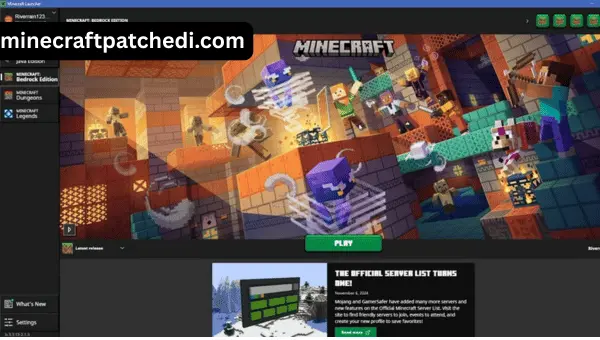
What Does Patched Mean in Minecraft?
Before checking anything, you need to understand what patched actually means.
In Minecraft, a patch usually means one of three things:
- The game has been updated by the official developer.
- A mod or third-party client has changed the game files.
- A cracked or unofficial version has been altered to bypass restrictions.
The official game is developed by Mojang Studios and owned by Microsoft. When they release updates, those are official patches. But when someone modifies the game files manually or through a launcher, that is also called patched.
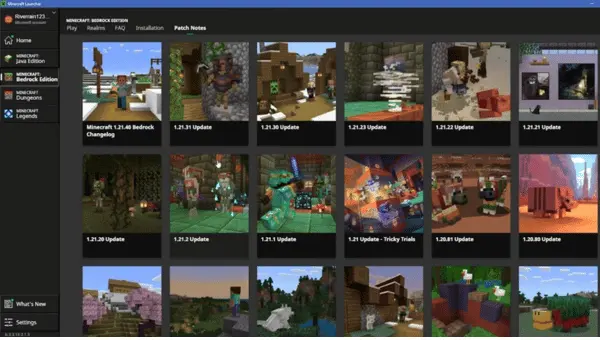
Step 1: Check Your Minecraft Version Number
How to Check Version on Java Edition
If you are playing Minecraft Java Edition, follow these steps:
- Open the Minecraft Launcher.
- Look at the bottom left corner.
- You will see the version number.
If you see something like:
- Release 1.20.4
- Release 1.21
- Latest Release
Then your game is running an official version.
But if you see:
- Forge 1.20.1
- Fabric Loader
- OptiFine 1.20
- Custom Client name
Then your game is modified. Modified does not always mean bad. Many players use Forge or Fabric to install mods safely. But technically, this means your game is patched with extra files.
How to Check Version on Bedrock Edition
If you are playing on mobile, Xbox, PlayStation, or Windows 10:
- Open the game.
- Look at the bottom right corner of the main menu.
- You will see a version number.
If the game updates automatically through your device store, it is official. Bedrock is harder to patch unless you install third-party APK files or modified apps.
Step 2: Check If Your Launcher Is Official
Many problems start with unofficial launchers. The official Java launcher comes directly from the Minecraft website and connects to Microsoft login.
If your launcher:
- Asks for a Microsoft account login
- Syncs skins automatically
- Shows official news
Then it is official.
If your launcher:
- Does not require login
- Says “cracked version”
- Has ads
- Installs automatically from unknown websites
Then your Minecraft is likely patched. This is one of the biggest signs.
Step 3: Check Your Game Files
If you want to be 100% sure, you can check the game files manually.
On Windows
- Press Windows + R
- Type %appdata%
- Open the .minecraft folder
Inside this folder, check:
- “versions” folder
- “mods” folder
- “libraries”
If you see a mods folder with many files inside, your game is modified. If you see strange files that you did not install yourself, your game may have been patched. Official Minecraft without mods does not include extra mod files.
Step 4: Test Multiplayer Access
This is a very smart test.
Try joining:
- Official Realms
- Big servers like Hypixel
If you get errors like:
- “Failed to authenticate”
- “Invalid session”
- “Client modifications detected”
Then your Minecraft may be patched or unofficial. Most big servers detect modified or cracked clients quickly.
Step 5: Check for Mod Loaders (Forge, Fabric, OptiFine)
Many players confuse mods with patches.
Here is the truth:
- Forge = Mod loader
- Fabric = Mod loader
- OptiFine = Performance mod
If you installed these yourself, your Minecraft is technically modified but safe.
If you did not install them and they appear in your version list, then someone else patched your game.
You can check inside the launcher profile settings to see what version is selected.
Signs Your Minecraft Has Been Unofficially Patched
Here are strong warning signs:
Your game:
- Crashes randomly
- Shows strange menus
- Has unlocked skins automatically
- Allows premium features without buying
- Cannot join official servers
- Does not update properly
These are common in cracked or patched builds.
Official Minecraft does not behave like this.
How to Know If Minecraft Was Patched After an Update
Sometimes players install mods and then update the game. This can cause hidden patch conflicts.
If after updating:
- Your mods stop working
- The game loads differently
- Settings reset
- Worlds behave strangely
Then your previous patched files may be conflicting with the new update. In this case, delete the version folder and reinstall fresh from the official launcher.
Troubleshooting: What to Do If Your Minecraft Is Patched
If you confirmed your Minecraft is unofficially patched, here is what to do.
1. Backup Your Worlds
Before doing anything, copy your “saves” folder from .minecraft.
This protects your worlds.
2. Delete the .minecraft Folder
After backup:
- Delete the entire .minecraft folder
- Reinstall Minecraft from the official website
This removes all patches and mods.
3. Install Only Trusted Mods
If you want mods:
- Use official Forge or Fabric website
- Avoid unknown download pages
- Never download “free premium unlocked” versions
Java vs Bedrock: Which Is Easier to Patch?
- Java Edition is easier to modify because it allows file access.
- Bedrock Edition is more controlled. It is harder to patch unless using unofficial APK files.
- If you are on Android and installed Minecraft outside the Play Store, your game may be patched.
- On console (Xbox, PlayStation), it is almost always official because system security blocks modification.
How to Confirm 100% That Your Minecraft Is Official
Here is the simplest full confirmation checklist:
- You log in using Microsoft.
- Your launcher is official.
- No strange client name appears.
- No unexpected mods are installed.
- You can join Realms.
- Game updates automatically.
If all these are true, your Minecraft is not unofficially patched.
Frequently Asked Questions (FAQ)
Yes, technically it modifies the game. But it is safe and officially supported by the modding community.
Yes. Large servers can ban cracked or modified clients that break rules.
Backup worlds, delete the .minecraft folder, reinstall from official source.
It modifies performance and graphics, so yes it changes the game files.
Final Thoughts
Knowing how to know if your Minecraft is patched is not difficult once you understand what to look for. Check your version, launcher, game files, and multiplayer access. Most problems come from unofficial downloads or unknown clients.
If you want a safe experience, always use the official launcher, update regularly, and install mods only from trusted sources. Minecraft is designed to be stable and secure when installed properly. A clean installation solves most issues instantly.